
Free Up Disk Space with Compact GUI
Shrink games and programs by up to 60% using Windows native compression. No performance loss, no repacking, fully reversible.
What is Compact GUI?
A lightweight Windows utility that reclaims disk space from games and applications without removing a single file.
Windows compression, simplified
Compact GUI is a free, open-source tool that puts a graphical interface on top of Windows’ built-in NTFS transparent compression. Instead of typing compact.exe commands in a terminal, you pick a folder, choose a compression algorithm, and let it run. Files shrink on disk but behave normally in every application – no unpacking step, no performance penalty in most cases.
The tool was built by IridiumIO and is available on GitHub under the GPL-3.0 license. It runs on Windows 10 and Windows 11, requires an NTFS-formatted drive, and weighs in at just 2.8 MB for the standalone executable. You can also install Compact GUI through winget or Chocolatey if you prefer package managers.
How much space does it actually save?
Results vary by game and file type, but savings of 30-60% are common. A 61 GB Cyberpunk 2077 install, for example, can drop to around 35 GB. The app includes a community-maintained database with compression results from over 9,700 games and 82,000+ user submissions, so you can check expected ratios before committing to anything.
Compact GUI offers four NTFS compression algorithms: XPRESS4K, XPRESS8K, XPRESS16K, and LZX. XPRESS4K is the fastest with modest compression. LZX squeezes harder but takes longer. XPRESS8K hits a practical middle ground for most game libraries. The compression is fully reversible – one click and your files return to their original size.
Who is it for?
Anyone running low on SSD space. Gamers with large Steam or Epic libraries get the most obvious benefit, but Compact GUI works on any folder. Developers with bulky SDKs, designers with asset libraries, or anyone on a laptop with a 256 GB drive will find it useful. One thing to note: it should not be used on games that rely on DirectStorage on Windows 11, since that feature expects uncompressed data for its direct-to-GPU pipeline.
Ready to free up some disk space? Download Compact GUI or read the getting started guide first.
What Makes Compact GUI Different
Built around Windows’ own NTFS compression engine, Compact GUI gives you a clean visual interface over a tool Microsoft buried in the command line.
Community Compression Database
Before compressing anything, check what other users got. The database includes results from over 9,700 games and 82,000 submissions, so you can see expected savings for most popular titles before you start.
4 Compression Algorithms
Pick from XPRESS4K, XPRESS8K, XPRESS16K, or LZX depending on how aggressively you want to compress. XPRESS4K is fastest with modest savings; LZX squeezes the most space but takes longer.
No Performance Hit
Compact GUI uses Windows’ built-in NTFS transparent compression. Your CPU decompresses files on the fly during reads, and modern processors handle this with no measurable slowdown in games or apps.
Visual Before/After Stats
See exactly how much space you saved with bar charts and percentage breakdowns. The interface shows current size vs. compressed size so there is no guesswork about what you gained.
Background Watcher
Games update and lose their compression. The Watcher service runs in the background and automatically re-compresses folders after Steam, Epic, or other launchers push updates.
Explorer Integration
Right-click any folder in Windows Explorer to compress it directly. You can also drag and drop folders onto the Compact GUI window if you prefer that workflow.
File Type Exclusions
Some files barely compress and waste CPU time. Set up exclusion filters for formats like .mp4 or .zip that are already compressed, and Compact GUI will skip them automatically.
Fully Reversible
Changed your mind? Uncompress any folder back to its original state with one click. NTFS compression is completely transparent to applications, and removing it restores exact original file sizes.
Multiple Install Methods
Grab it from GitHub as a portable .exe, or install through winget (winget install CompactGUI) or Chocolatey. No installer wizard, no bundled extras.
No Admin Rights Needed
Most compression operations work without elevated privileges. Compact GUI writes to folders you already have access to, so there is no need to run it as administrator for everyday use.
Open Source (GPL-3.0)
The full source code is on GitHub. You can inspect what it does, fork it, or contribute. Unlike alternatives such as SNUG (paid, on Steam), Compact GUI costs nothing and hides nothing.
Ready to reclaim disk space? Download Compact GUI and compress your first folder in under a minute.
System Requirements
Compact GUI runs on most modern Windows PCs. The app itself is lightweight, but you will need an NTFS-formatted drive for compression to work.
| Component | Minimum | Recommended |
|---|---|---|
| Operating System | Windows 10 (64-bit) | Windows 11 (64-bit, latest update) |
| Processor | Any x64 CPU (Intel or AMD) | Multi-core processor (4+ threads) |
| RAM | 2 GB | 4 GB or more |
| Disk Space | 10 MB (standalone .exe is 2.8 MB) | 100 MB (mono .exe is 72 MB) |
| File System | NTFS (required for compression) | NTFS on all target drives |
| Runtime | .NET 6 (for v3.x stable) | .NET 9 (for v4.x beta) |
| Display | 1024 x 768 | 1280 x 720 or higher |
| Permissions | Standard user account | Admin access for system-wide operations |
Download Compact GUI
Grab the latest stable release or install through your preferred package manager. Compact GUI is a lightweight portable app that runs directly on Windows 10 and 11.
Direct download – portable .exe, no installation required. Just download and run.
Compact GUI requires NTFS-formatted drives and .NET 6 runtime (v3.x) or .NET 9 (v4.x beta). A beta version (v4.0 Beta 6) with new features is also available on GitHub. Do not use Compact GUI on games with DirectStorage enabled on Windows 11.
Screenshots
See Compact GUI in action — from folder selection to compression results and settings configuration.
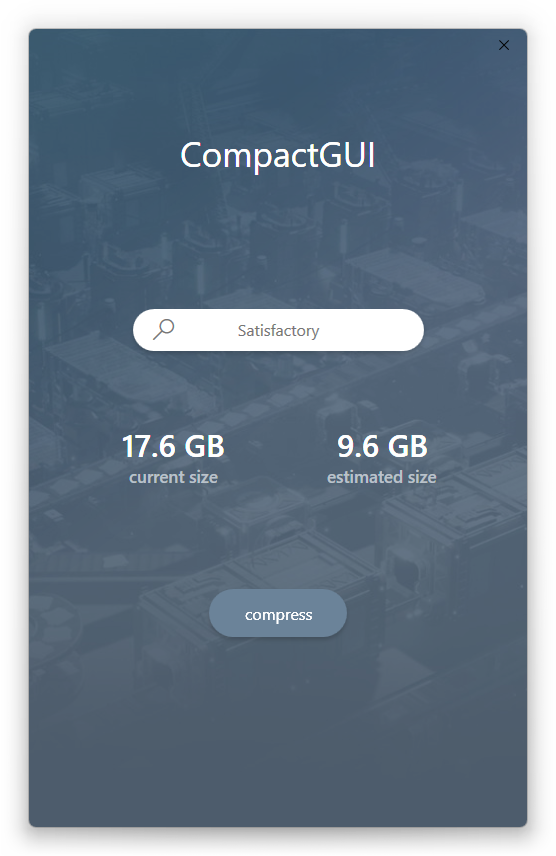
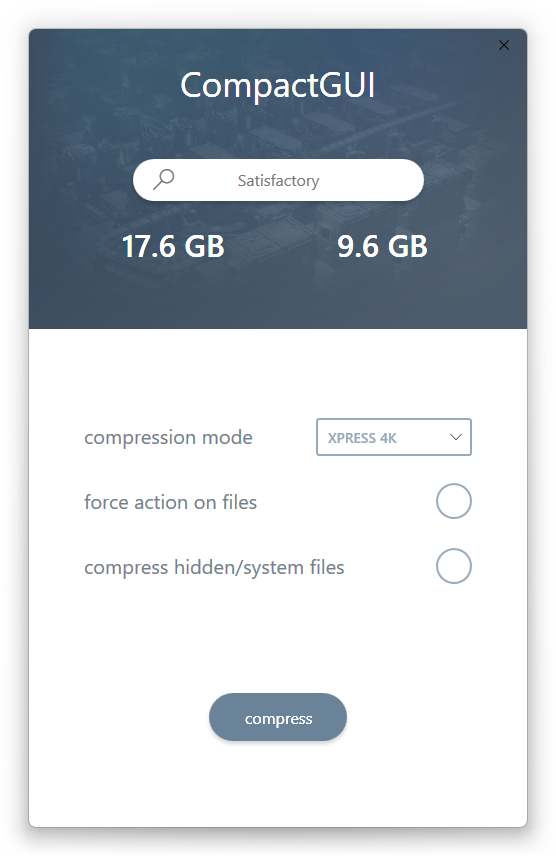
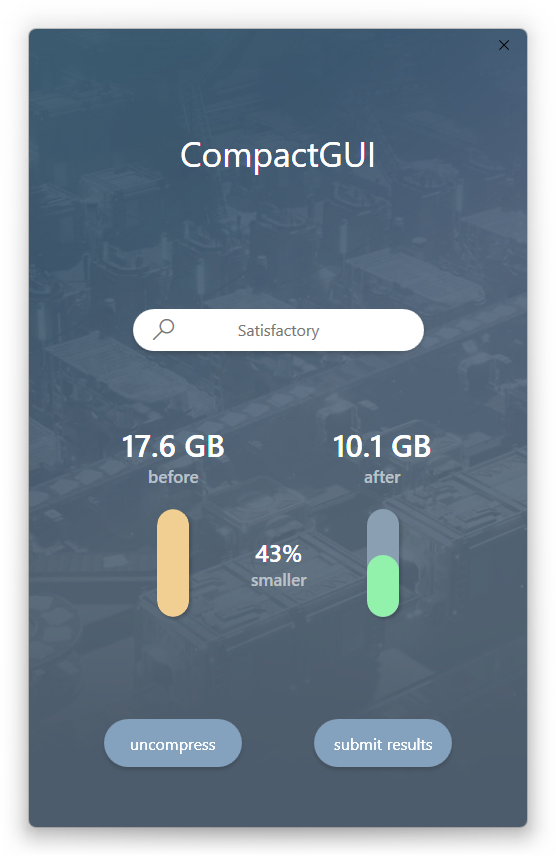
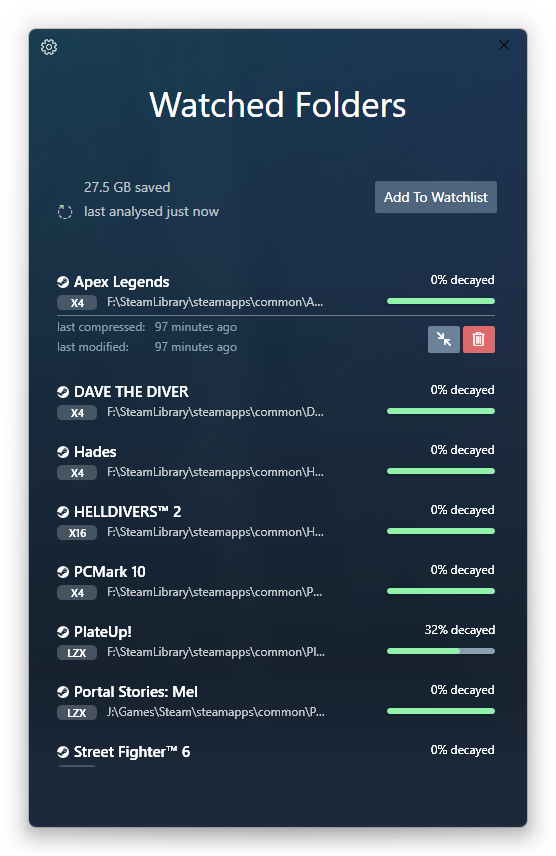
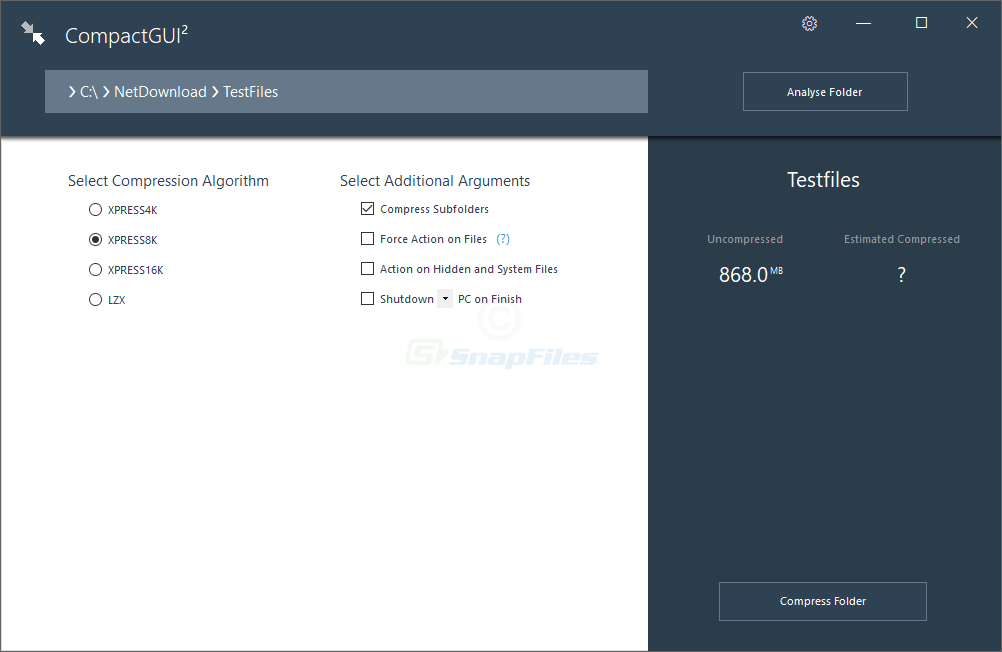
Screenshots from Compact GUI v3.x running on Windows 11. View on GitHub
Getting Started with Compact GUI
From download to your first compressed folder in under ten minutes. Here is everything you need to get Compact GUI running on your Windows PC.
Downloading Compact GUI
Head over to our download section above to grab the latest version of Compact GUI. You will find two download options, and the difference matters:
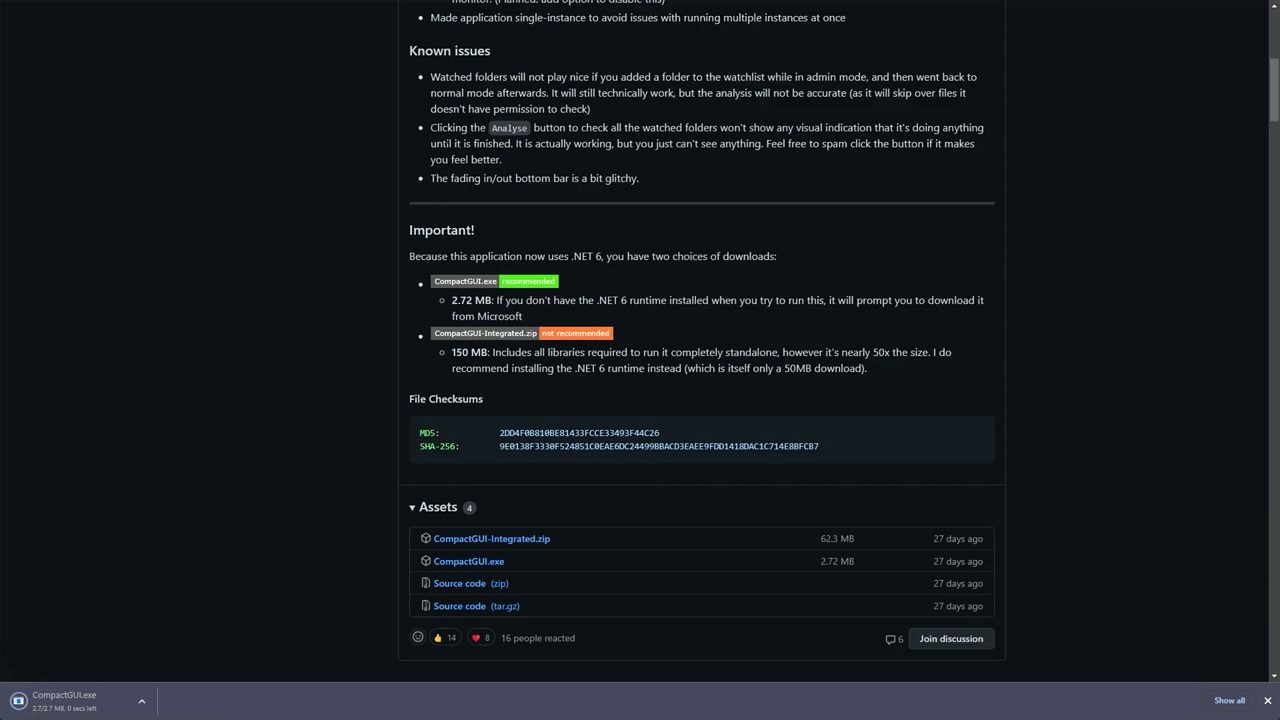
- CompactGUI.exe (2.8 MB) – The recommended option. This is the lightweight standalone executable. It requires the .NET Desktop Runtime to be installed on your system. If you do not already have it, Windows will prompt you to install it when you first run the program.
- CompactGUI-Integrated.zip (72 MB) – A self-contained package that bundles the .NET runtime inside. Pick this if you prefer zero dependencies or if you are running it on a machine where you cannot install runtimes separately.
For most people, the smaller 2.8 MB download is the way to go. The .NET runtime install adds about 50 MB, but you probably already have it if you use other modern Windows apps. You can also install Compact GUI through a package manager if you prefer that route:
choco install compactgui. Both methods handle the .NET runtime dependency automatically.
Installation Walkthrough
Compact GUI is a portable application, so there is no traditional installer to step through. Just download CompactGUI.exe and run it directly. Place the file somewhere permanent like C:ToolsCompactGUI or your Desktop. That is it.
When you double-click the .exe for the first time, a couple of things may happen:
- Windows SmartScreen warning – Because Compact GUI is an open-source project distributed outside the Microsoft Store, SmartScreen may flag it as “unrecognized.” Click More info, then Run anyway. This is normal for unsigned open-source software and not a security concern. The project has 2,600+ GitHub stars and is well-vetted by the community.
- .NET runtime prompt – If you downloaded the small 2.8 MB version and do not have .NET Desktop Runtime 6.0 (or .NET 9 for v4.x beta), Windows will show a dialog asking you to install it. Click the link in the dialog, download the runtime from Microsoft, and run that installer first.
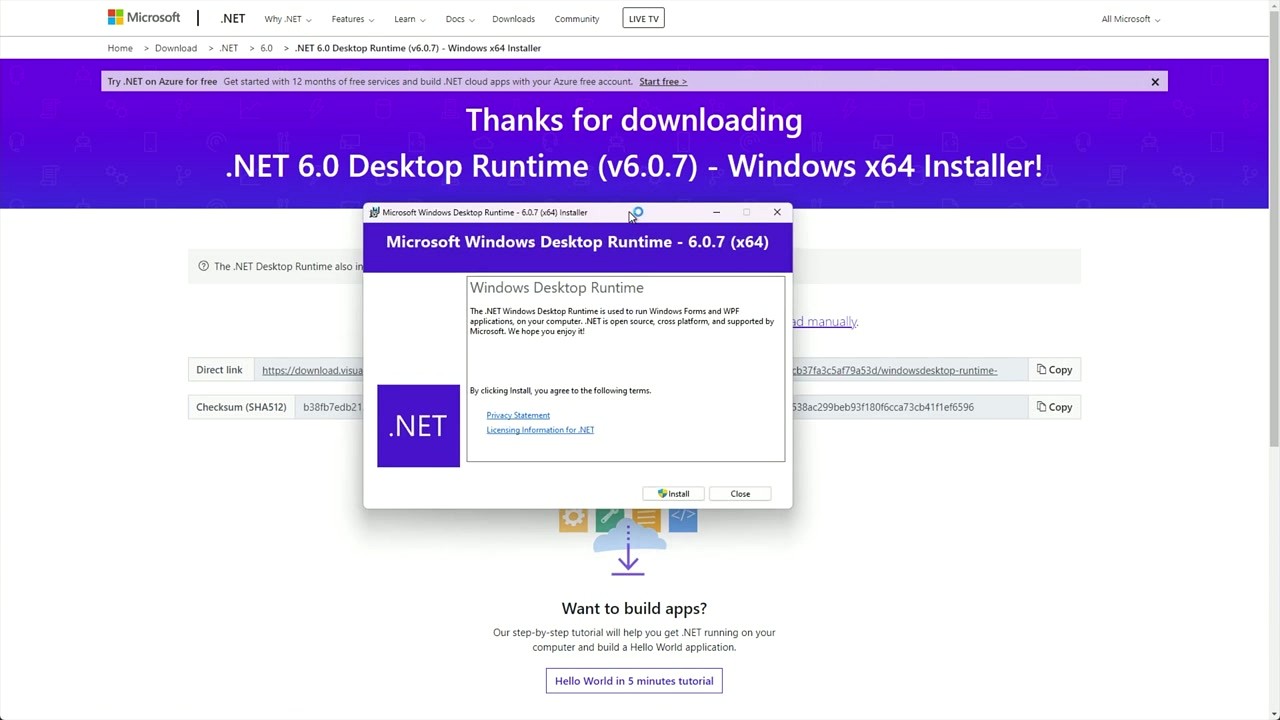
The .NET runtime installer is straightforward: click Install, wait about 30 seconds, and you are done. After that, launch CompactGUI.exe again and the program will open without issues.
There is no registration, no account creation, and no license activation. Open the program and you are ready to compress.
Initial Setup and Configuration
Compact GUI does not have a separate settings wizard. The configuration lives right in the main window. Here are the options you should understand before compressing anything:
Compression Algorithm – This is the single most important setting. You will see a dropdown with four choices:
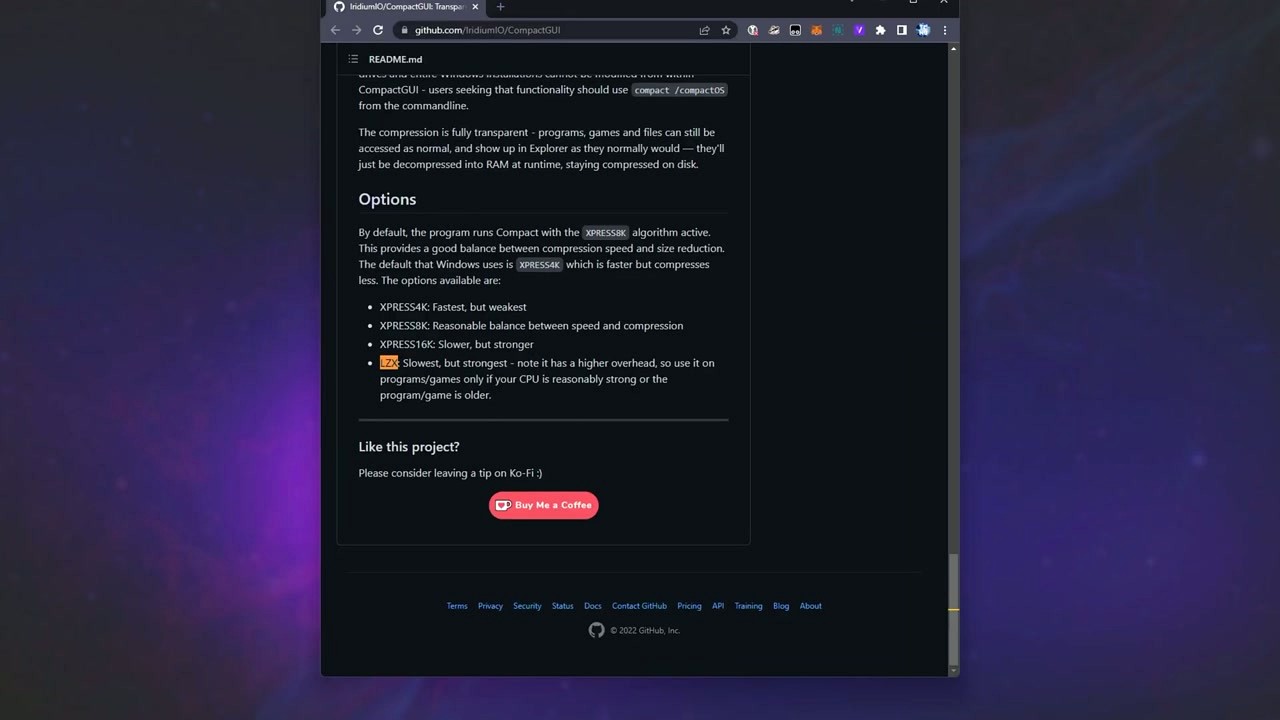
- XPRESS4K – Fastest compression and decompression. Saves 15-25% space on average. Good for programs you launch frequently where speed matters most.
- XPRESS8K – The default, and the best all-rounder. Balances speed with decent compression (25-40% savings). Recommended for most games.
- XPRESS16K – Stronger compression (30-50% savings) with slightly more CPU overhead during decompression. A solid pick for games you play occasionally.
- LZX – Maximum compression (40-60% savings), but the slowest to read back. Use this on older games or programs where a few extra milliseconds of load time will not bother you. Avoid LZX on games with frequent asset streaming.
Additional Options:
- Force Action – Re-compresses files that are already compressed. Leave this off unless you are switching algorithms.
- Include Hidden/System Files – Enable this to compress hidden files inside the folder. Usually safe to leave on.
Your First Compression
Let us walk through compressing a Steam game folder. This is the most common use case and shows exactly how the whole process works.
Step A: Select your target folder. In the Compact GUI window, click the Select Folder button (or type/paste a path into the search bar at the top). Navigate to your Steam library. The default location is:
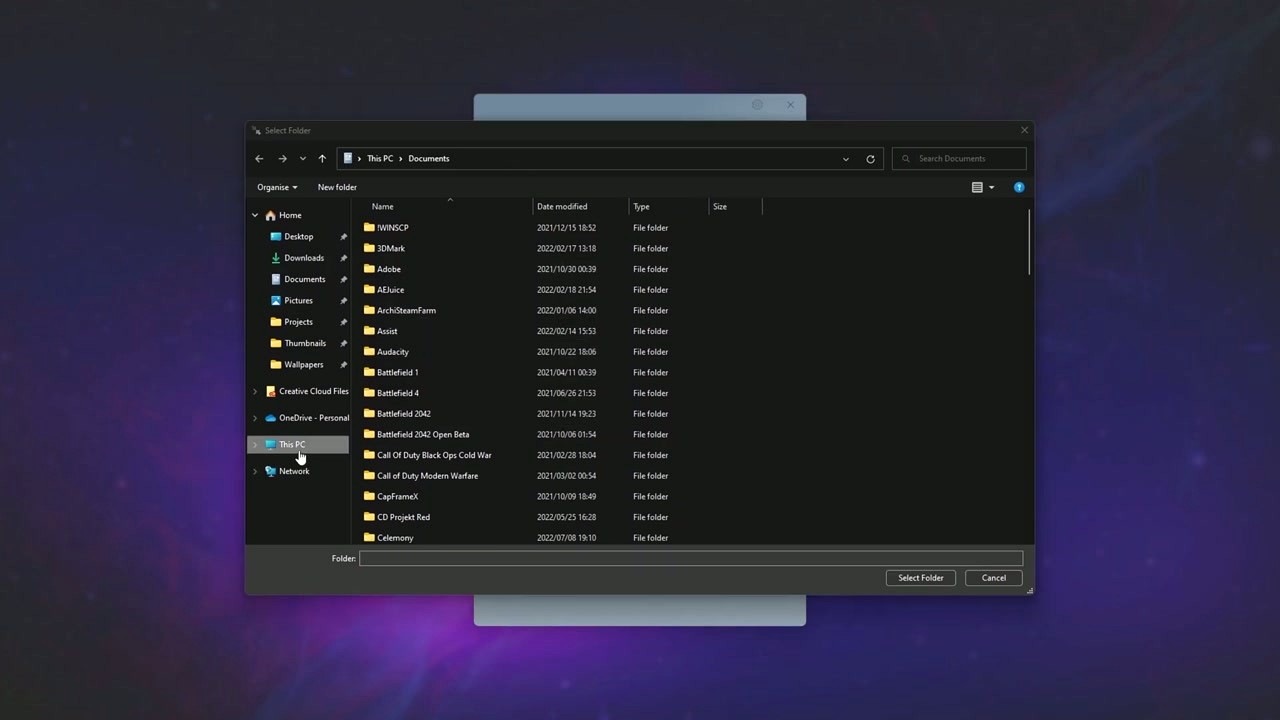
Pick a game folder. For your first try, choose something mid-sized (10-50 GB) so you can see results quickly without waiting hours.
Step B: Check the estimated compression. Once you select a folder, Compact GUI queries its community database (over 82,000 submissions from real users) and shows you an estimate. You will see the current size and the predicted size after compression, along with the percentage you can expect to save. If the game does not appear in the database, you can still compress it – you just will not see estimates beforehand.
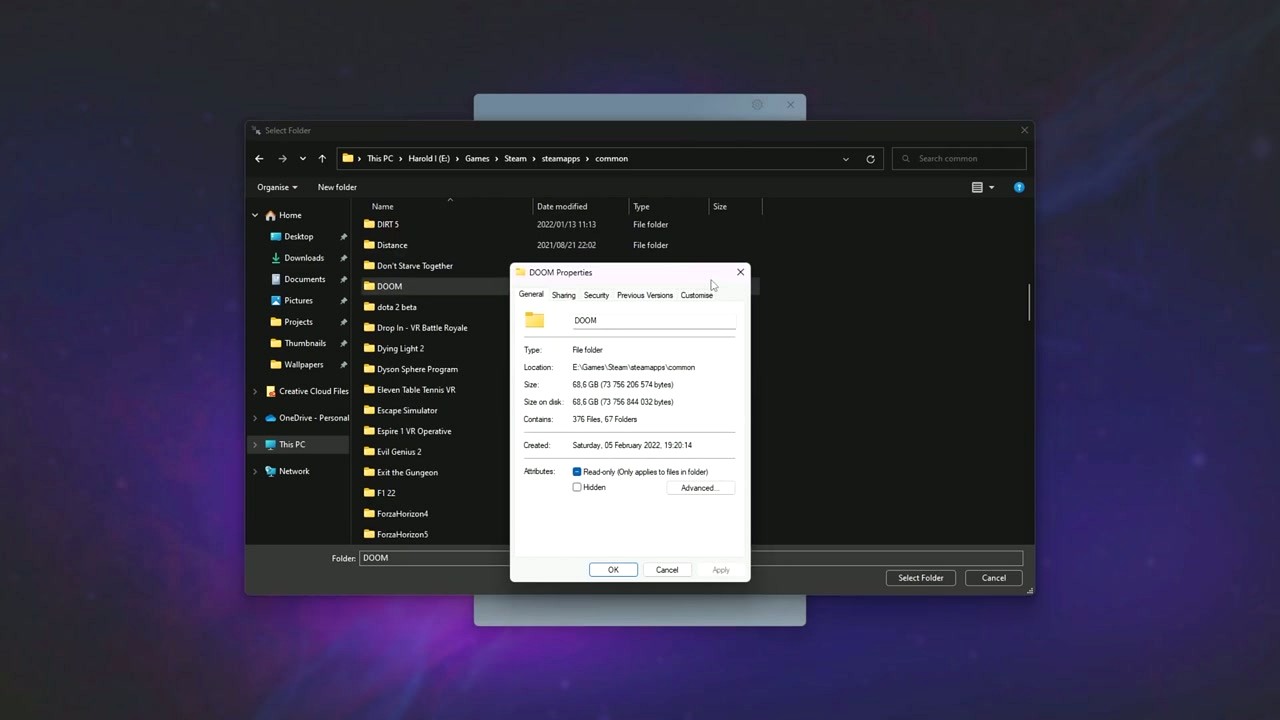
Step C: Choose your algorithm and compress. Set the compression algorithm (XPRESS8K for your first run), then click Compress. The progress indicator shows which files are being processed. Compression speed depends on your drive and CPU. A 30 GB game on an NVMe SSD typically finishes in 5-15 minutes.
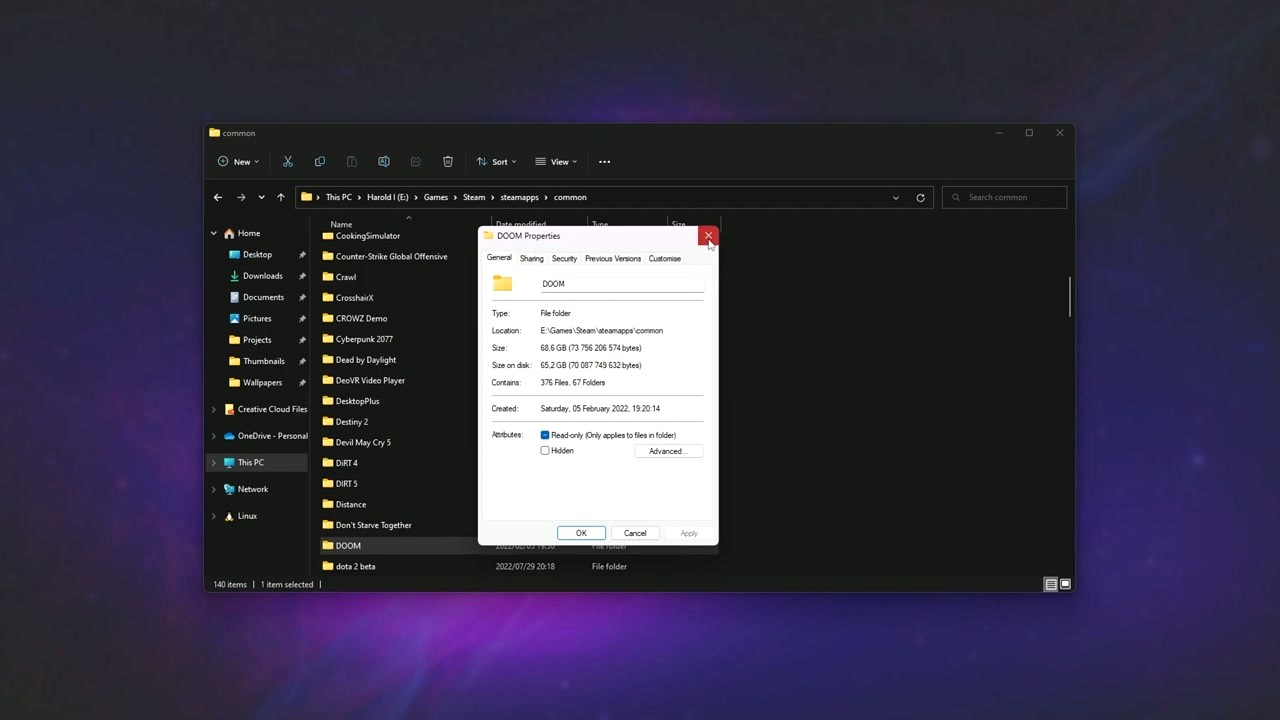
Step D: Verify the results. When compression finishes, Compact GUI displays a summary: original size, compressed size, and space saved. Open the game and play it normally. You should not notice any difference. The files are transparently decompressed by Windows as they are read.
Tips, Tricks and Best Practices
Use the Background Watcher. When Steam or another launcher updates a game, those patched files revert to uncompressed. Compact GUI has a Watcher feature that monitors your compressed folders in the background and automatically re-compresses them when changes are detected. You can enable it from the bottom bar of the application. It runs in the system tray and uses minimal resources.
Do not compress DirectStorage games on Windows 11. A handful of newer titles (like Forspoken or Ratchet & Clank) use DirectStorage for GPU-accelerated asset loading. Transparent NTFS compression conflicts with this technology and may cause crashes or performance issues. Check the game’s store page or PCGamingWiki before compressing cutting-edge releases.
Start with your biggest games. Sorting your Steam library by install size and compressing the top 5-10 entries gives you the biggest return for your time. Games like ARK: Survival Evolved can go from 170 GB down to around 91 GB. That is almost 80 GB recovered from a single game.
Compression is fully reversible. If anything goes wrong, just open Compact GUI, select the same folder, and click Uncompress. All files return to their original state. You can also use the command line: compact /U /S:"C:pathtofolder".
Where to get help: The GitHub repository has a Wiki section with detailed documentation, a Discussions tab for community Q&A, and the Issues page for bug reports. Reddit threads in r/pcgaming and r/Steam also have plenty of user tips.
Ready to reclaim your disk space? Download Compact GUI and start compressing.
Frequently Asked Questions
Answers to the most common questions about downloading, installing, and using Compact GUI for Windows disk compression.
Is Compact GUI safe to download and use?
Yes, Compact GUI is safe. The project is open-source under the GPL-3.0 license, and all source code is publicly available on GitHub for anyone to inspect. The software has over 6,700 GitHub stars and more than 82,000 community-submitted compression results, which reflects a large and active user base that has been using it since 2017.
Compact GUI works by calling the built-in Windows compact.exe command-line tool through native NTFS APIs. It does not modify your files in any permanent way. The compression is transparent, meaning Windows handles the decompression automatically when you open a file. Your antivirus might briefly flag the download because the .exe is not signed with an EV code signing certificate, but this is a false positive common with independent open-source projects.
- Download only from the official GitHub Releases page at github.com/IridiumIO/CompactGUI/releases or via
winget install CompactGUI - The standalone .exe is 2.8 MB. If a download site offers a larger file or a different installer, that is not the real thing
- Check the SHA256 hash listed on the GitHub release page against your downloaded file
- The software does not require admin rights for standard compression tasks
Pro tip: If Windows SmartScreen blocks the download, click “More info” then “Run anyway.” This happens because open-source developers rarely pay for code signing certificates, not because the file is dangerous.
For a direct link to the verified download, visit our download section.
Where is the official safe download for Compact GUI?
The only official source for Compact GUI is the GitHub repository maintained by IridiumIO at github.com/IridiumIO/CompactGUI/releases. The latest stable release is v3.8 (released February 24, 2025) and the latest beta is v4.0 Beta 6 (July 16, 2025).
There are several third-party sites that repackage Compact GUI downloads, and some of these bundle adware or outdated versions. MajorGeeks and Softpedia carry the genuine file, but GitHub is always the safest bet. You can also install it through Windows Package Manager by running winget install CompactGUI in a terminal, or through Chocolatey with choco install compactgui. Both package managers pull directly from the official release.
- Official GitHub: github.com/IridiumIO/CompactGUI/releases
- Winget:
winget install CompactGUI - Chocolatey:
choco install compactgui
A common mistake is downloading from random “free download” sites that wrap the installer in their own executable. If the file is larger than 3 MB (the standalone exe is 2.8 MB), or if it asks you to install a toolbar or browser extension, you grabbed a fake.
Pro tip: Use the winget method if you want automatic updates later. Run winget upgrade CompactGUI anytime to pull the latest version without visiting any website.
Head to our download section for direct links and file size verification details.
Does Compact GUI work on Windows 11?
Yes, Compact GUI works on both Windows 10 and Windows 11 without issues. The software uses Windows’ native NTFS compression APIs, which are part of the operating system itself and work the same on both versions.
The v3.8 stable release runs on .NET 6 runtime. The v4.0 beta requires .NET 9, which Windows 11 users can install from Microsoft’s website or through winget. The software has been tested across Windows 11 22H2, 23H2, and 24H2 by thousands of users. On the GitHub issues page, only a handful of reports mention Windows 11-specific problems, and most of those relate to the beta branch rather than stable.
There is one important exception for Windows 11 users: games that use DirectStorage should not be compressed with Compact GUI. DirectStorage bypasses the normal file I/O pipeline to load assets directly from NVMe SSDs into GPU memory. Compressing these files would force them through the regular decompression path, which defeats the purpose of DirectStorage and could cause stuttering or crashes. Games using DirectStorage include Forspoken, Ratchet & Clank: Rift Apart, and a growing list of newer AAA titles.
- Windows 11 (all editions, 22H2 and later): fully supported
- DirectStorage games: do not compress these folders
- .NET 6 runtime required for v3.8 stable; .NET 9 for v4.0 beta
Pro tip: If you are unsure whether a game uses DirectStorage, check the game’s Steam store page under system requirements, or search for the game name in the Compact GUI community database. Games with DirectStorage support are typically flagged there.
Check our system requirements section for full hardware and software specs.
What are the system requirements for Compact GUI?
Compact GUI has minimal system requirements. You need Windows 10 or later, an NTFS-formatted drive, and .NET 6 runtime (for v3.8) or .NET 9 (for the v4.0 beta). That covers it for the basics.
The application itself uses very little memory and CPU. The standalone executable is just 2.8 MB, and the self-contained “mono” build that bundles its own .NET runtime is about 72 MB. During active compression, CPU usage rises depending on the algorithm you pick. XPRESS4K and XPRESS8K are lightweight and finish quickly. LZX uses more CPU and takes longer, but it produces smaller files. On a modern quad-core processor, compressing a 50 GB game folder with XPRESS8K takes roughly 10-20 minutes.
The software works on NTFS drives only. If your game drive is formatted as exFAT, FAT32, or ReFS, Compact GUI will not work on those partitions. Most internal SSDs and hard drives in Windows installations use NTFS by default, but external drives and USB sticks are often formatted differently.
- OS: Windows 10 or Windows 11 (64-bit)
- Runtime: .NET 6 (v3.x) or .NET 9 (v4.x beta)
- File system: NTFS only (not FAT32, exFAT, or ReFS)
- Disk space: 3 MB for standalone, 72 MB for self-contained build
- Admin rights: Not required for most operations
Pro tip: To check your drive’s file system, open File Explorer, right-click the drive, select Properties, and look for “File system: NTFS” on the General tab.
See the full system requirements table for minimum and recommended specs.
Does Compact GUI work on macOS or Linux?
No, Compact GUI is a Windows-only application. It relies on Windows’ built-in NTFS compression feature (compact.exe), which is part of the Windows operating system kernel. NTFS compression does not exist on macOS or Linux.
macOS uses APFS, which has its own transparent compression, but Apple does not expose a user-facing tool for it. Linux supports Btrfs transparent compression with zstd or lzo algorithms, but that requires a different set of tools entirely (like compsize and mount options). Neither of these platforms can run Compact GUI, even through compatibility layers like Wine, because the program needs direct access to Windows NTFS API calls.
If you are on a Linux system with an NTFS partition (for example, a dual-boot setup), you could technically mount that partition and run the Windows command-line tool from within Windows. But there is no way to use Compact GUI from the Linux side.
- Windows 10/11: fully supported
- macOS: not compatible (no NTFS compression support)
- Linux: not compatible (uses different file systems)
Pro tip: If you are on Linux and want similar transparent compression for games, look into Btrfs with zstd compression. Mount your game partition with compress=zstd:3 for comparable space savings with minimal CPU overhead.
For the Windows download, see our download section.
Is Compact GUI completely free to use?
Yes, Compact GUI is 100% free and open-source. There is no paid version, no premium tier, no ads, and no data collection. The project is licensed under GPL-3.0, which means anyone can use, modify, and distribute it freely.
The developer, IridiumIO, maintains the project on GitHub as a personal open-source effort. There is no company behind it and no monetization. The community compression database, which contains over 82,000 submissions across 9,779+ tested games, is also freely accessible. Every feature in Compact GUI is available to all users without restrictions.
This is worth highlighting because a paid competitor called SNUG appeared on Steam in 2024. SNUG does the same basic thing (transparent NTFS compression) but charges money for it and has mixed reviews (around 65% positive on Steam). Compact GUI provides the same underlying compression technology at no cost, with a larger community database and more active development.
- Price: free, forever
- License: GPL-3.0 open-source
- No ads, no tracking, no premium upsells
- All features unlocked for every user
Pro tip: If you find Compact GUI useful, consider starring the GitHub repository or submitting your compression results to the community database. That helps the project grow and improves compression estimates for other users.
Learn more about what you get in our features section.
What is the difference between Compact GUI free and paid alternatives like SNUG?
Compact GUI is free and open-source. SNUG is a paid application on Steam that does the same basic job. Both tools use Windows’ built-in NTFS transparent compression, so the actual compression technology is identical.
The main differences come down to the interface, automation features, and community support. Compact GUI has been around since 2017, has 6,700+ GitHub stars, and includes a community database of 9,779+ tested games with 82,000+ compression results. Its Background Watcher feature automatically recompresses game folders after updates. SNUG offers a one-click project compression feature and auto-detection of installed games, but carries mixed reviews on Steam (around 65% positive) and has a much smaller user base.
- Compact GUI: Free, 6,700+ stars, 9,779 games in database, 4 compression algorithms, background watcher, Explorer context menu, active development (v4.0 beta)
- SNUG: Paid (Steam), auto-imports games, one-click project compression, smaller community, mixed reviews
- Compactor: Free, Rust-based, faster pre-compression checks, but development stopped in 2020
For most users, Compact GUI is the better choice. It has more features, a larger database for estimating compression ratios, and you pay nothing for it. SNUG might appeal to someone who wants a more polished “set and forget” experience and does not mind paying, but the underlying compression is the same Windows API.
Pro tip: Before compressing a large game, search its name in the Compact GUI community database to see the average compression ratio reported by other users. This saves you time by showing whether compression is worthwhile for that specific game.
See our features overview for a breakdown of what Compact GUI offers.
How do I download and install Compact GUI step by step?
Compact GUI does not have a traditional installer. The standard download is a standalone portable .exe that you run directly. No installation wizard, no registry entries, no Start Menu clutter.
The v3.8 stable release requires .NET 6 Desktop Runtime. If you do not have it installed, Windows will prompt you to download it on first launch. The v4.0 beta needs .NET 9 instead. The self-contained “mono” build (72 MB) bundles the .NET runtime so you can skip that step entirely, but it is a larger download.
- Go to the download section on this page or visit GitHub Releases
- Download
CompactGUI.exe(2.8 MB standalone) orCompactGUI-mono.exe(72 MB self-contained) - If Windows SmartScreen shows a warning, click “More info” then “Run anyway”
- If prompted, install .NET 6 Desktop Runtime from the Microsoft link that appears
- Run CompactGUI.exe. The main window opens immediately with a search bar and folder selector
You can also install via command line: open a terminal and run winget install CompactGUI or choco install compactgui. Both pull the official release automatically.
Pro tip: Place the .exe in a folder like C:ToolsCompactGUI and add that folder to your system PATH. This lets you right-click any folder in Explorer and open it with Compact GUI if you enable the context menu integration from the app’s settings.
For a full walkthrough, see our Getting Started guide.
Compact GUI portable vs installer – which should I choose?
Choose the portable standalone .exe in almost every case. Compact GUI does not offer a traditional installer. Both available downloads are portable: the regular CompactGUI.exe (2.8 MB, needs .NET runtime installed separately) and the self-contained CompactGUI-mono.exe (72 MB, bundles its own .NET runtime).
The regular standalone build is what most people use. It is tiny, launches instantly, and keeps its config data in the same folder where you place the .exe. The self-contained mono build exists for situations where you cannot or do not want to install the .NET 6 Desktop Runtime system-wide. This is useful on locked-down work computers or if you want to run it from a USB drive.
- CompactGUI.exe (2.8 MB): Best for most users. Requires .NET 6 runtime installed. Tiny download, fast launch.
- CompactGUI-mono.exe (72 MB): Best for USB drives or restricted PCs. Self-contained, no dependencies. Larger file size.
Since both are portable, uninstalling means deleting the .exe file and its config folder. No registry cleanup needed, no leftover files scattered across your system.
Pro tip: If you already have .NET 6 installed (many apps require it), grab the 2.8 MB version. Run dotnet --list-runtimes in a terminal to check which .NET versions you have.
Download either version from our download section.
How to fix Compact GUI not opening, crashing, or freezing?
Most crashes and startup failures trace back to corrupted config files or missing .NET runtime components. The fix is straightforward in most cases.
Compact GUI stores its configuration in an AppData folder. When this data gets corrupted (often after a Windows update or a forced shutdown during compression), the app can hang on launch or crash immediately. GitHub issue #592 and #401 both document this pattern. The v4.0 beta has also had stability issues that the developer is actively fixing, so if you are on the beta branch, switching to the v3.8 stable release often resolves the problem.
- Close Compact GUI completely (check Task Manager for any lingering processes)
- Navigate to
%APPDATA%CompactGUIand delete or rename the folder - Relaunch the application. It will recreate fresh config files on startup
- If it still crashes, verify your .NET runtime: run
dotnet --list-runtimesin a terminal and confirm .NET 6 (for v3.8) or .NET 9 (for v4.0 beta) is listed - As a last resort, download the self-contained mono build (72 MB) which bundles its own .NET runtime
Users on software RAID volumes or using disk caching tools like PrimoCache have reported hangs during compression (GitHub issue #489). If you are in that situation, try compressing a folder on a standard NTFS drive first to confirm the app works, then investigate the RAID/cache interaction.
Pro tip: The v4.0 beta has known UI freezing issues that appear in the GitHub issue tracker. For production use, stick with v3.8 stable until v4.0 reaches a full release.
For installation help, check our Getting Started guide.
Does Compact GUI affect game performance or FPS?
For most games on modern hardware, Compact GUI has zero measurable impact on FPS or load times. On HDDs specifically, loading times can actually decrease because the compressed files are physically smaller on disk, meaning the drive head reads less data.
The compression is handled by a Windows kernel driver that decompresses files on the fly as they are read. On any CPU made in the last decade, this decompression adds less than 1% CPU overhead. Multiple Reddit threads on r/pcgaming and r/pcmasterrace confirm this, with users reporting no FPS difference after compressing their entire Steam libraries.
There are two exceptions where performance might be affected:
- DirectStorage games on Windows 11: These games load assets directly from NVMe SSDs to GPU memory, bypassing normal file I/O. Compression forces these files through the standard decompression pipeline, adding latency. Do not compress DirectStorage-enabled games.
- Low-power handheld PCs: Devices like the Steam Deck (running Windows), MSI Claw, or Asus ROG Ally have weaker CPUs. Some users on r/MSIClaw report slightly longer load times with LZX compression on CPU-constrained devices. Use XPRESS4K or XPRESS8K instead of LZX on handhelds.
The XPRESS algorithms (4K, 8K, 16K) are faster to decompress than LZX. XPRESS8K hits the best balance between compression ratio and speed for gaming. LZX produces smaller files but takes longer to decompress and compress.
Pro tip: Compress one game first, launch it, play for 30 minutes, and check for stuttering. If everything runs fine, compress the rest of your library. You can always uncompress from within Compact GUI if something goes wrong.
Read about all compression algorithms in our features section.
Compact GUI stopped working after a Windows update – how to fix?
Windows updates occasionally break .NET runtime installations or reset file associations, which can cause Compact GUI to stop launching. This is not a bug in Compact GUI itself, but a side effect of how Windows handles runtime updates.
The most common scenario is a major Windows feature update (like moving from 23H2 to 24H2) that upgrades or removes the .NET 6 runtime. When this happens, the standalone CompactGUI.exe cannot find its required runtime and either shows an error dialog or silently fails to open.
- Open a terminal and run
dotnet --list-runtimesto verify .NET Desktop Runtime 6.x is still installed - If .NET 6 is missing, reinstall it from Microsoft’s .NET 6 download page
- If the runtime is present but Compact GUI still fails, delete the
%APPDATA%CompactGUIfolder and try again - Download the latest v3.8 release from GitHub in case your local copy is outdated
Another post-update issue is that Windows sometimes resets NTFS compression attributes on system folders. Compact GUI’s Background Watcher feature helps with this by automatically recompressing game folders after they are updated by Steam, Epic, or other launchers.
Pro tip: Switch to the self-contained mono build (72 MB) if you are tired of .NET runtime issues. It bundles everything it needs and is immune to Windows removing or upgrading shared .NET runtimes.
See our download section for both the standalone and self-contained builds.
How to update Compact GUI to the latest version?
Compact GUI does not include a built-in auto-updater. To update, download the latest release from GitHub and replace the old .exe file with the new one. Your compression history and settings are stored separately in %APPDATA%CompactGUI, so they persist between versions.
The fastest update method depends on how you originally installed it:
- Manual download: Visit GitHub Releases, download the latest
CompactGUI.exe, and replace the old file in your installation folder - Winget: Run
winget upgrade CompactGUIin a terminal. This checks for newer versions and updates automatically - Chocolatey: Run
choco upgrade compactgui
The current stable release is v3.8 (February 2025). The v4.0 beta series is available for early adopters who want the newest features, but expect occasional bugs. If you are on the beta track, check GitHub more frequently as beta releases come out every few weeks.
Pro tip: Star or watch the GitHub repository to get email notifications when new releases drop. Click the “Watch” button at the top of the repo page and select “Releases only” to avoid notification spam from issue discussions.
Grab the latest version from our download section.
What is new in the latest version of Compact GUI?
The latest stable version is v3.8, released on February 24, 2025. The latest beta is v4.0 Beta 6, released on July 16, 2025. The v4.0 line is a major rewrite with a redesigned interface and new features.
Version 3.8 is the recommended release for daily use. It includes the Background Watcher service for automatic recompression, Windows Explorer context menu integration, drag-and-drop folder support, and access to the community compression database with 9,779+ tested games. It runs on .NET 6 and has been the default stable build for months.
The v4.0 beta series brings a modernized UI built on .NET 9, improved compression speed, better handling of large folders, and new file type exclusion filters. However, multiple GitHub issues show that the beta still has stability problems, including UI freezes when analyzing very large directories and occasional crashes during compression.
- v3.8 stable: Reliable, well-tested, .NET 6, all core features working
- v4.0 Beta 6: Redesigned UI, .NET 9, faster compression, but has known bugs
Pro tip: You can run v3.8 and v4.0 beta side by side in different folders since both are portable executables. Test the beta on non-critical folders while keeping the stable version for your main game library.
Check our features section for details on what each version offers.
Compact GUI vs Compactor – which is better for game compression?
Compact GUI is the better choice for most users in 2025. Both tools use the same Windows NTFS compression technology, so the actual compression ratios are identical. The difference is in the interface, features, and maintenance status.
Compactor (by Freaky on GitHub) is a Rust-based GUI that has not received an update since 2020. It has 1,300 GitHub stars and was known for its “compresstimation” feature that pre-checks how compressible files are before starting. It also has a faster skip mechanism for already-compressed data. However, with 5+ years of no updates, it does not support newer Windows 11 features, and bug reports go unanswered.
Compact GUI has 6,700+ stars, active development (v4.0 beta released July 2025), a community database with 9,779+ games and 82,000+ compression submissions, a Background Watcher that recompresses after game updates, and Windows Explorer context menu integration. It handles everything Compactor does, plus more.
- Compact GUI: Actively maintained, 6,700+ stars, community database, background watcher, Explorer integration, .NET 6/.NET 9
- Compactor: Abandoned since 2020, 1,300 stars, pre-compression estimation, Rust-based, fast skip for incompressible files
Some users on r/pcgaming still prefer Compactor for its simpler, more minimal interface. GitHub issue #91 on the Compactor repo includes a user who said “I would prefer to use Compactor because CompactGUI is fairly weird with the UI.” That said, Compact GUI’s interface in v4.0 has been completely redesigned, and the community size makes it a safer long-term bet.
Pro tip: If you just want to compress one folder and never think about it again, both tools work equally well. But if you regularly install and update games, Compact GUI’s Background Watcher saves you from manually recompressing after every game patch.
See our full feature comparison for more details.
What is the best compression algorithm in Compact GUI – XPRESS vs LZX?
XPRESS8K is the best all-around choice for most users. It provides a strong balance between compression ratio and speed, with negligible decompression overhead on any modern CPU.
Compact GUI offers four NTFS compression algorithms, all built into Windows: XPRESS4K, XPRESS8K, XPRESS16K, and LZX. The number after XPRESS refers to the block size used for compression. Larger blocks generally mean better compression ratios but slightly slower decompression. Here is how they compare in practice:
- XPRESS4K: Fastest compression and decompression. Lowest ratio (typically 10-25% savings). Best for SSDs where speed matters more than space.
- XPRESS8K: Good balance. 20-40% savings on most games. Recommended default for gaming PCs and handhelds.
- XPRESS16K: Better ratio than 8K, slightly slower. 25-50% savings. Good for HDDs where read speed is the bottleneck.
- LZX: Highest ratio (30-60% savings) but noticeably slower compression. Decompression is still fast. Best for archival or games you rarely play but want to keep installed.
For gaming on NVMe SSDs, XPRESS8K is the standard recommendation. On HDDs, XPRESS16K or LZX can actually improve load times because the smaller files mean less physical data for the drive to read. On handheld PCs with weaker CPUs (Steam Deck in Windows mode, MSI Claw), stay with XPRESS4K or XPRESS8K to avoid any decompression overhead during gameplay.
Pro tip: You can test different algorithms on the same folder. Compress with XPRESS8K first, note the final size, then uncompress and try LZX. The community database on GitHub also shows which algorithm most users picked for each game, which gives you a quick recommendation.
Learn more about each algorithm in our features section.
How much disk space can Compact GUI actually save?
Space savings vary by game, but typical results range from 20% to 60%. The community database shows an average of around 40% across 9,779+ tested games and 82,000+ submissions. That means a 100 GB game folder typically shrinks to 40-60 GB.
The savings depend on what kind of data the game stores. Pre-compressed assets like .ogg audio, .mp4 video, and JPEG textures barely compress at all. Uncompressed textures, XML configuration files, and raw audio files compress very well. Games with lots of pre-rendered cutscenes save less space than games built on text-heavy engines with uncompressed assets.
Real-world examples from the community database and Reddit threads:
- Cyberpunk 2077 (61.3 GB): compresses to roughly 34.8 GB with XPRESS8K (43% savings)
- ARK: Survival Evolved (400+ GB): up to 50% savings, one of the most popular use cases on Reddit
- Aethermancer (5 GB): compressed to 900 MB (82% savings, reported on r/MSIClaw)
- Stellaris: 40-50% savings reported on r/pcgaming
Some games show minimal savings (under 10%). This usually means the game files are already heavily compressed by the developer. If the community database shows a low compression ratio for a specific game, compressing it is not worth the time.
Pro tip: Before compressing your whole library, use the Compact GUI search bar to check each game against the community database. Focus on the games with 30%+ estimated savings first. A library of 20 games at 40% average savings can easily free up 200-400 GB.
See our download section to get started.
How to uncompress files with Compact GUI?
Uncompressing is built into Compact GUI and takes one click. Open the application, select or drag in the folder you want to decompress, and click the “Uncompress” button. The files return to their original uncompressed state with no data loss.
NTFS transparent compression is fully reversible. The compression metadata is stored in the NTFS file system itself, not in the files. When you uncompress, Windows simply removes the compression attribute and writes the full uncompressed data back to disk. Your game or application will not notice any difference, because it already reads the files as if they were uncompressed (that is what “transparent” means).
- Open Compact GUI
- Select the compressed folder (drag-and-drop or browse)
- The interface shows the current compressed size and a “Compressed” status
- Click the “Uncompress” button
- Wait for the process to finish. Larger folders take a few minutes
You can also uncompress from the command line using Windows’ built-in tool: compact /u /s:"C:GamesYourGame". This does the same thing without needing Compact GUI open.
Pro tip: If a game starts acting strangely after compression (rare, but possible with DirectStorage games or certain anti-cheat systems), uncompress it immediately. The process takes roughly the same time as the original compression and restores everything exactly.
For more details on using the software, visit our Getting Started guide.
How to compress Steam games with Compact GUI?
Point Compact GUI at your Steam game’s installation folder and click compress. Steam does not interfere with NTFS compression, and the game continues to work normally through Steam’s launcher.
Steam games are typically installed in C:Program Files (x86)Steamsteamappscommon or wherever you set your Steam library folder. Each game has its own subfolder. You compress individual game folders, not the entire Steam directory.
- Open Compact GUI
- Navigate to your Steam library folder or drag the specific game folder into the window
- Use the search bar to find the game by name. If it is in the community database, you will see estimated compression ratios from other users
- Select your compression algorithm (XPRESS8K is the recommended default)
- Click “Compress” and wait for it to finish
- Launch the game through Steam as usual. It runs the same way
One thing to watch: Steam game updates will uncompress the updated files. If a game gets a 5 GB patch, those new files arrive uncompressed. Compact GUI’s Background Watcher feature automatically detects this and recompresses updated folders. Enable it from the application settings so you do not have to manually recompress after every patch.
Do not compress your entire steamapps folder at once. Compress individual game folders instead. This gives you control over which games stay compressed and makes it easier to uncompress a single game if needed.
Pro tip: Sort your Steam library by install size (Library > Storage Manager) and start compressing the biggest games first. Compressing your top 5 largest games often frees up more space than compressing 20 smaller ones.
Learn more in our Getting Started guide.
Still have questions? Check the official wiki on GitHub or visit the community discussions.